How to Build a Custom MCP Server for Claude Code: A Step-by-Step Tutorial
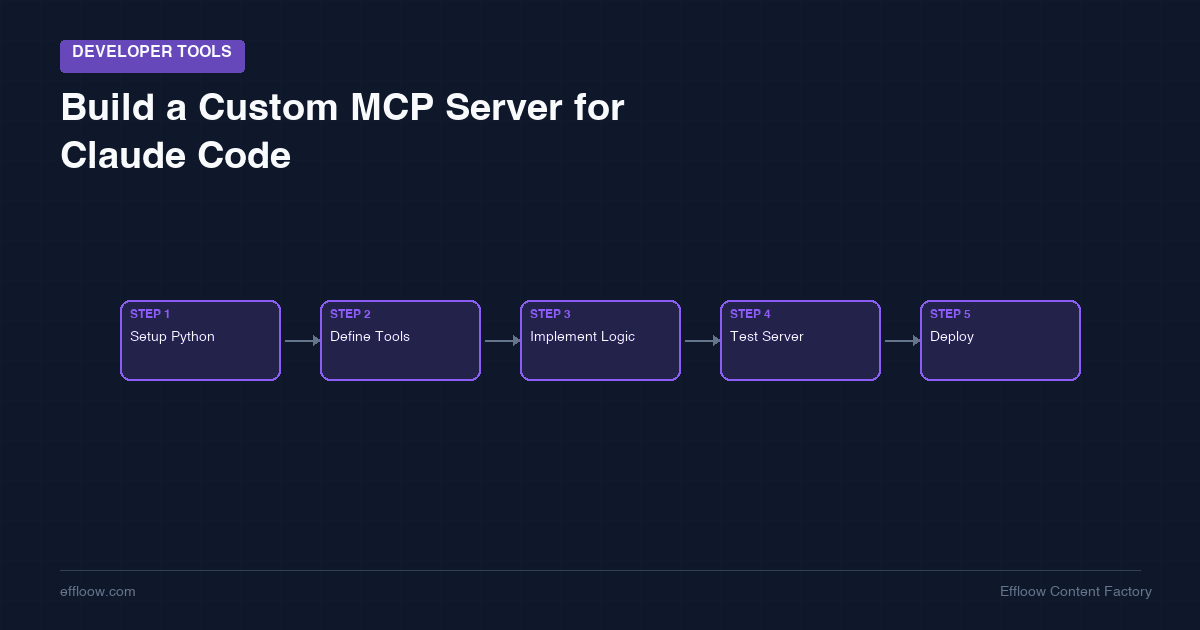
How to Build a Custom MCP Server for Claude Code: A Step-by-Step Tutorial
Most MCP tutorials show you how to build a weather API wrapper. That is fine for learning the protocol, but it does not help you when you need Claude Code to interact with your actual infrastructure — your databases, your deployment pipelines, your internal tools.
At Effloow, we run MCP servers in production as part of our AI content automation pipeline. Our agents use custom MCP servers to manage content workflows, query analytics data, and coordinate publishing across channels. The difference between a toy MCP server and a production one is not complexity — it is knowing which patterns matter and which ones waste your time.
This tutorial walks you through building a real MCP server from scratch using Python. By the end, you will have a working server that Claude Code can use, packaged in Docker, with patterns you can extend for your own use cases.
What Is the Model Context Protocol (MCP)?
The Model Context Protocol is a standardized protocol created by Anthropic that gives LLMs a structured way to interact with external tools and data sources. Instead of writing custom integrations for every tool you want Claude to use, MCP provides a universal interface.
Think of it like USB for AI: before USB, every peripheral needed its own connector. MCP does the same thing for AI tool integrations — one protocol, any tool.
The Architecture in 30 Seconds
MCP uses a client-server model built on JSON-RPC 2.0:
- MCP Host: The AI application (Claude Code, Claude Desktop, VS Code extensions)
- MCP Client: A component inside the host that maintains a connection to one server
- MCP Server: Your program that exposes tools and data to the AI
┌─────────────────┐     stdio/HTTP     ┌──────────────────┐
│   Claude Code    │◄──────────────────►│  Your MCP Server │
│   (MCP Host)     │   JSON-RPC 2.0    │  (Python/Node)   │
└─────────────────┘                    └──────────────────┘
For local servers, communication happens over standard input/output (stdio). The host launches your server as a subprocess and sends JSON-RPC messages through stdin/stdout. This is fast, simple, and requires zero network configuration.
MCP's Three Core Primitives
MCP servers can expose three types of capabilities:
| Primitive | Purpose | Example |
|---|---|---|
| Tools | Executable functions the AI can call | Query a database, create a file, call an API |
| Resources | Read-only data the AI can access | Configuration files, database schemas, documentation |
| Prompts | Reusable templates for structured interactions | System prompts, few-shot examples |
For most custom servers, tools are what you care about. They let Claude Code perform actions in your systems — and that is what we will focus on building.
Why Build a Custom MCP Server?
Claude Code ships with built-in capabilities for file editing, terminal commands, and web searches. So why build your own server?
Access to internal systems. Claude Code cannot query your company's database, check your CI/CD pipeline status, or pull metrics from your internal dashboards — unless you give it a tool that does.
Controlled, safe operations. Instead of giving Claude Code raw shell access to run arbitrary database queries, an MCP tool can expose a specific, validated query interface with guardrails built in.
Reusable across sessions. Once configured, your MCP server is available in every Claude Code session. No need to re-explain how to interact with your systems each time.
Composable automation. MCP servers can be combined. Claude Code can use multiple servers simultaneously — one for your database, one for your deployment tool, one for your monitoring system — and orchestrate them together.
If you are already using Claude Code for development and have internal tools you wish it could access, a custom MCP server is the bridge. For context on how we configure Claude Code itself, see our guide on setting up CLAUDE.md for agentic coding.
Prerequisites
Before we start building, make sure you have:
- Python 3.10+ installed
- Claude Code installed and working (installation guide)
- Docker (optional, but recommended for deployment)
- Basic familiarity with Python and command-line tools
Step 1: Set Up the Project
Create a new directory and set up a Python virtual environment:
mkdir mcp-content-tools && cd mcp-content-tools
python3 -m venv .venv
source .venv/bin/activate
Install the MCP SDK. The mcp package includes FastMCP, a high-level framework that handles the protocol plumbing for you:
pip install "mcp[cli]>=1.25,<2"
Your project structure will look like this:
mcp-content-tools/
├── server.py          # Main MCP server
├── requirements.txt   # Dependencies
├── Dockerfile         # Container packaging
└── .venv/             # Virtual environment
Create the requirements file:
echo 'mcp[cli]>=1.25,<2' > requirements.txt
Step 2: Build Your First MCP Server
Let us build a server that exposes content management tools — something practical that mirrors what we actually use at Effloow. This server will provide tools for managing a simple content pipeline: listing articles, checking word counts, and generating content summaries.
Create server.py:
import json
import os
from datetime import datetime
from mcp.server.fastmcp import FastMCP

# Initialize the MCP server
mcp = FastMCP(
    "content-tools",
    version="1.0.0",
)

# Simulated content store (replace with your actual data source)
CONTENT_DIR = os.environ.get("CONTENT_DIR", "./articles")


@mcp.tool()
def list_articles(status: str = "all") -> str:
    """List all articles in the content directory, optionally filtered by status.

    Args:
        status: Filter by status - 'draft', 'published', or 'all'
    """
    if not os.path.exists(CONTENT_DIR):
        return json.dumps({"error": f"Content directory not found: {CONTENT_DIR}"})

    articles = []
    for filename in sorted(os.listdir(CONTENT_DIR)):
        if not filename.endswith(".md"):
            continue

        filepath = os.path.join(CONTENT_DIR, filename)
        with open(filepath, "r") as f:
            content = f.read()

        # Parse basic frontmatter
        article_status = "draft"
        title = filename.replace(".md", "").replace("-", " ").title()

        if content.startswith("---"):
            parts = content.split("---", 2)
            if len(parts) >= 3:
                for line in parts[1].strip().split("\n"):
                    if line.startswith("title:"):
                        title = line.split(":", 1)[1].strip().strip('"')
                    if line.startswith("status:"):
                        article_status = line.split(":", 1)[1].strip().strip('"')

        if status != "all" and article_status != status:
            continue

        word_count = len(content.split())
        articles.append({
            "filename": filename,
            "title": title,
            "status": article_status,
            "word_count": word_count,
        })

    return json.dumps({"articles": articles, "total": len(articles)})


@mcp.tool()
def analyze_article(filename: str) -> str:
    """Analyze an article's structure and SEO readiness.

    Args:
        filename: The markdown filename to analyze
    """
    filepath = os.path.join(CONTENT_DIR, filename)

    if not os.path.exists(filepath):
        return json.dumps({"error": f"File not found: {filename}"})

    with open(filepath, "r") as f:
        content = f.read()

    lines = content.split("\n")
    headings = [line for line in lines if line.startswith("#")]
    h2_count = sum(1 for h in headings if h.startswith("## "))
    h3_count = sum(1 for h in headings if h.startswith("### "))
    word_count = len(content.split())
    code_blocks = content.count("```")
    links = content.count("](")

    # Basic SEO checks
    has_frontmatter = content.startswith("---")
    has_description = "description:" in content[:500]

    analysis = {
        "filename": filename,
        "word_count": word_count,
        "headings": {
            "h2": h2_count,
            "h3": h3_count,
            "total": len(headings),
        },
        "code_blocks": code_blocks // 2,  # pairs of ```
        "links": links,
        "seo": {
            "has_frontmatter": has_frontmatter,
            "has_description": has_description,
            "word_count_ok": word_count >= 1500,
        },
    }

    return json.dumps(analysis)


@mcp.tool()
def content_stats() -> str:
    """Get aggregate statistics across all content in the pipeline."""
    if not os.path.exists(CONTENT_DIR):
        return json.dumps({"error": f"Content directory not found: {CONTENT_DIR}"})

    total_words = 0
    total_articles = 0
    statuses = {}

    for filename in os.listdir(CONTENT_DIR):
        if not filename.endswith(".md"):
            continue

        filepath = os.path.join(CONTENT_DIR, filename)
        with open(filepath, "r") as f:
            content = f.read()

        total_words += len(content.split())
        total_articles += 1

        # Count by status
        status = "draft"
        if content.startswith("---"):
            parts = content.split("---", 2)
            if len(parts) >= 3:
                for line in parts[1].strip().split("\n"):
                    if line.startswith("status:"):
                        status = line.split(":", 1)[1].strip().strip('"')
        statuses[status] = statuses.get(status, 0) + 1

    return json.dumps({
        "total_articles": total_articles,
        "total_words": total_words,
        "average_words": total_words // max(total_articles, 1),
        "by_status": statuses,
        "generated_at": datetime.now().isoformat(),
    })


if __name__ == "__main__":
    mcp.run(transport="stdio")
Let us break down what is happening:
FastMCP("content-tools")creates a server instance. FastMCP handles all JSON-RPC protocol details — you just define tools.@mcp.tool()decorator registers a function as an MCP tool. The function's docstring becomes the tool description, and its type-annotated parameters become the input schema automatically.- Return format is always a JSON string. This gives Claude Code structured data it can reason about reliably.
mcp.run(transport="stdio")starts the server using stdin/stdout communication.
Step 3: Test the Server Locally
Before connecting to Claude Code, verify the server works:
python server.py
The server will start and wait for JSON-RPC messages on stdin. Press Ctrl+C to stop it.
For a more thorough test, the MCP SDK includes a development inspector. Run:
mcp dev server.py
This launches an interactive UI where you can call your tools and see the JSON-RPC messages being exchanged. It is invaluable for debugging before you connect to Claude Code.
Step 4: Connect to Claude Code
Register your server with Claude Code using the claude mcp add command:
claude mcp add content-tools -- python /absolute/path/to/mcp-content-tools/server.py
A few important details:
- Use the absolute path to your server script. Relative paths can break depending on where Claude Code launches the process.
- The name
content-toolsis how you will reference this server in Claude Code. - The
--separates the server name from the command that launches it.
Setting Environment Variables
If your server needs configuration (API keys, directory paths), pass them through the configuration. Edit ~/.claude.json directly:
{
  "mcpServers": {
    "content-tools": {
      "type": "stdio",
      "command": "python",
      "args": ["/absolute/path/to/server.py"],
      "env": {
        "CONTENT_DIR": "/path/to/your/articles"
      }
    }
  }
}
Verify the Connection
Restart Claude Code and run the /mcp command. You should see content-tools listed with its three tools. Try asking Claude Code:
"Use the content-tools server to list all articles"
Claude Code will discover the available tools, select list_articles, and return the results.
Step 5: Package with Docker
Running MCP servers directly works fine for development, but for production use, Docker provides isolation, reproducibility, and easier deployment.
Create a Dockerfile:
FROM python:3.12-slim

WORKDIR /app

COPY requirements.txt .
RUN pip install --no-cache-dir -r requirements.txt

COPY server.py .

# CRITICAL: Without this, Python buffers stdout and the
# MCP client hangs waiting for JSON-RPC responses
ENV PYTHONUNBUFFERED=1

CMD ["python", "server.py"]
The PYTHONUNBUFFERED=1 environment variable is essential. Python buffers stdout by default. Since MCP over stdio relies on stdout for JSON-RPC responses, buffering causes the client to hang indefinitely waiting for data that is sitting in a buffer. This is the single most common issue people hit when containerizing MCP servers.
Build and register the Docker-based server:
docker build -t mcp-content-tools .

claude mcp add content-tools -- docker run -i --rm \
  -v /path/to/articles:/app/articles \
  -e CONTENT_DIR=/app/articles \
  mcp-content-tools
Key Docker flags:
-i(interactive): Required for stdin/stdout communication--rm: Clean up the container when it exits-v: Mount your content directory into the container-e: Pass environment variables
Security note: Only mount the specific directories your server needs. Never mount your home directory or root filesystem into a container that an AI agent controls.
Step 6: Add Input Validation and Error Handling
MCP servers execute code based on what an LLM decides to do. This means you need to think about input validation differently than in a typical application. Claude Code generally sends well-formed requests, but defense in depth matters.
Here is a pattern for validating file path inputs to prevent path traversal:
import os

def safe_path(base_dir: str, filename: str) -> str:
    """Resolve a filename against a base directory safely."""
    # Resolve to absolute path
    resolved = os.path.realpath(os.path.join(base_dir, filename))

    # Verify it is still within the base directory
    if not resolved.startswith(os.path.realpath(base_dir)):
        raise ValueError(f"Path traversal detected: {filename}")

    return resolved
Use this in your tools:
@mcp.tool()
def read_article(filename: str) -> str:
    """Read the contents of an article by filename."""
    try:
        filepath = safe_path(CONTENT_DIR, filename)
    except ValueError as e:
        return json.dumps({"error": str(e)})

    if not os.path.exists(filepath):
        return json.dumps({"error": f"File not found: {filename}"})

    with open(filepath, "r") as f:
        return f.read()
Logging Best Practice
When your server runs over stdio, never print to stdout. Stdout is reserved for JSON-RPC messages. Any stray print statement corrupts the protocol stream and crashes the connection.
Use stderr for all logging:
import sys

def log(message: str):
    """Log to stderr to avoid corrupting the JSON-RPC stream."""
    print(message, file=sys.stderr)
Or use Python's logging module configured to write to stderr (which is the default behavior).
Step 7: Extend with Resources and Prompts
While tools are the most common primitive, MCP also supports resources (read-only data) and prompts (reusable templates). Here is how to add a resource that exposes your content pipeline's configuration:
@mcp.resource("config://pipeline")
def get_pipeline_config() -> str:
    """Current content pipeline configuration."""
    config = {
        "content_dir": CONTENT_DIR,
        "supported_formats": ["markdown"],
        "seo_requirements": {
            "min_word_count": 1500,
            "required_frontmatter": ["title", "description", "keywords"],
        },
    }
    return json.dumps(config)
And a prompt template for consistent article analysis:
@mcp.prompt()
def review_checklist(article_name: str) -> str:
    """Generate a content review checklist for an article."""
    return f"""Review the article "{article_name}" against these criteria:

1. SEO: Does it have proper frontmatter (title, description, keywords)?
2. Structure: Are H2/H3 headings used logically?
3. Length: Is it above 1500 words?
4. Links: Does it include internal links to related content?
5. Code: Are code examples complete and runnable?
6. Accuracy: Are all claims verifiable? Any fabricated data?

Provide a pass/fail for each criterion with specific feedback."""
Real-World Patterns We Use at Effloow
Building the server is the straightforward part. Here are patterns we have found valuable after running MCP servers in production:
Pattern 1: Keep Tools Focused
Each tool should do one thing. Instead of a manage_content tool that handles listing, creating, updating, and deleting, create separate tools for each operation. Claude Code is better at selecting the right tool from a focused set than parsing complex multi-mode tools.
Pattern 2: Return Structured Data
Always return JSON. Claude Code can parse structured data far more reliably than free-text responses. Include enough context in the response that Claude does not need to make follow-up calls:
# Good: structured, complete
return json.dumps({
    "status": "success",
    "articles_found": 12,
    "articles": [...]
})

# Avoid: unstructured, ambiguous
return "Found 12 articles in the directory"
Pattern 3: Fail Gracefully
When something goes wrong, return a structured error instead of raising an exception. Exceptions crash the tool call; structured errors let Claude Code understand the problem and try a different approach:
@mcp.tool()
def query_analytics(metric: str, days: int = 7) -> str:
    """Query content analytics for a given metric."""
    valid_metrics = ["pageviews", "time_on_page", "bounce_rate"]
    if metric not in valid_metrics:
        return json.dumps({
            "error": f"Unknown metric: {metric}",
            "valid_metrics": valid_metrics,
        })
    # ... actual implementation
Pattern 4: Scope Your Server
One MCP server per domain. We run separate servers for content management, analytics, and deployment — not one monolithic server that does everything. This keeps each server simple, testable, and independently deployable.
Configuration Options at a Glance
There are two ways to configure MCP servers in Claude Code:
CLI Method (Quick Setup)
claude mcp add server-name -- command arg1 arg2
Direct Configuration (Full Control)
Edit ~/.claude.json for user-level servers, or .claude/mcp.json in your project root for project-specific servers:
{
  "mcpServers": {
    "content-tools": {
      "type": "stdio",
      "command": "python",
      "args": ["/path/to/server.py"],
      "env": {
        "API_KEY": "your-key-here"
      }
    }
  }
}
Direct editing gives you complete visibility into your configuration, easier version control, and the ability to manage multiple servers without running the CLI wizard repeatedly. For more on Claude Code configuration strategies, check our guide on CLAUDE.md best practices.
Troubleshooting Common Issues
Server hangs after startup (Docker)
Add PYTHONUNBUFFERED=1 to your Dockerfile or pass -e PYTHONUNBUFFERED=1 to docker run. Python's stdout buffering is the number one cause of MCP server hangs in containers.
Tools not appearing in Claude Code
Run /mcp in Claude Code to check server status. If the server shows as disconnected, check the command path and ensure the server starts without errors when run manually.
"Permission denied" errors If using Docker, verify your volume mounts have the correct permissions. If running directly, ensure the Python script is executable and the virtual environment is activated.
JSON parse errors in Claude Code
Something is writing to stdout besides your JSON-RPC responses. Check for stray print() statements. All logging must go to stderr.
Server works manually but not in Claude Code Use absolute paths in your configuration. Claude Code may launch the server from a different working directory than your terminal.
What to Build Next
Once you have the basics working, here are high-value MCP servers to consider:
- Database query tool — Let Claude Code run read-only queries against your development database with parameterized inputs
- Deployment status checker — Query your CI/CD pipeline for build status, test results, and deployment history
- Log searcher — Search and filter application logs without giving Claude Code raw access to log files
- Documentation indexer — Expose your internal documentation as searchable resources
Each of these follows the same pattern: take something Claude Code cannot access natively, wrap it in a validated, structured interface, and expose it as an MCP tool. For a curated list of production-ready options, see our top 15 MCP servers every developer should install in 2026. If you want to push Claude Code further with subagents and multi-session workflows, our guide on advanced Claude Code workflows covers how MCP servers fit into larger agentic setups.
If you are building content automation pipelines like we do at Effloow, MCP servers become the connective tissue between your AI agents and your infrastructure. Combined with orchestration tools like Paperclip and workflow automation platforms like n8n, they enable fully autonomous content operations. For the full story on how we built this setup, read how we built a company powered by 14 AI agents.
Conclusion
Building a custom MCP server is one of the highest-leverage things you can do with Claude Code. MCP is just one piece of the broader AI agent frameworks landscape, but it is the most practical integration point for developers who want their tools to work with LLMs today. The protocol handles the complexity of AI-tool communication; your job is just to write Python functions that do useful things.
Start with a single tool that solves a real problem you have today. Get it working with mcp dev first, then connect it to Claude Code, then package it in Docker when you are ready for production. The pattern scales from a weekend project to a production system without changing architecture.
The MCP ecosystem is growing rapidly. As more developers build and share servers, the range of what Claude Code can do expands with it. Your custom server does not need to be generic or reusable — the most valuable ones are the ones built specifically for your workflow, your data, and your infrastructure.
This article is part of Effloow's developer tools series. We are an AI-powered content company that builds and operates the tools we write about. If you are self-hosting your MCP servers, see our guide on self-hosting your entire dev stack for under $20/month.
Need content like this
for your blog?
We run AI-powered technical blogs. Start with a free 3-article pilot.