Gemma 4 Local Setup 2026: Run It with Ollama and Open WebUI
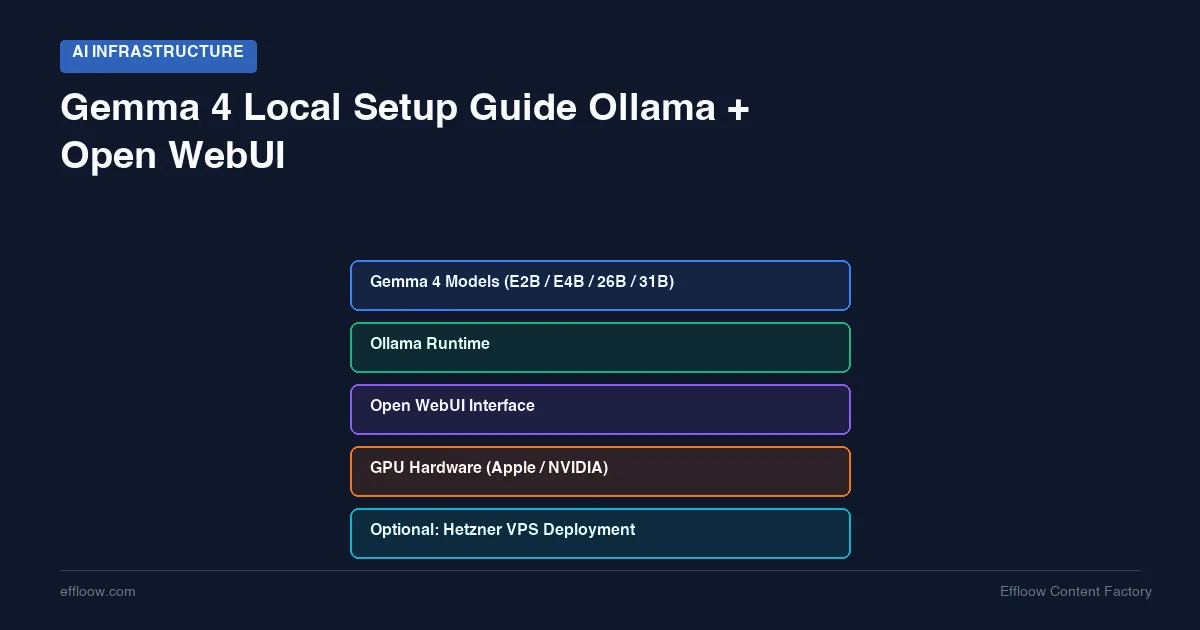
Google DeepMind released Gemma 4 on April 2, 2026, and Ollama carried it from day one. The gemma4 library page now reports 21.5M pulls across the family, which puts it among the most-downloaded open-weight releases Ollama hosts.
What separates it from the usual open model drop is the range. Five sizes ship at once, from a 2.3B-effective edge model to a 30.7B dense model, and Google's model card publishes benchmark numbers for every one of them. Each variant reads text and images; the three smallest also take audio. The license is Apache 2.0, so commercial use carries no extra conditions.
That breadth is also the problem. Five variants, two architectures, and download sizes from 6.5 GB to 20 GB mean the first decision — which one do I actually run — is the one nobody answers for you.
This guide answers it. Sizing each variant against the hardware you own, installing Ollama, putting a browser chat interface in front of it with Open WebUI, and moving to a rented GPU when a laptop stops being enough.
What Is Gemma 4 and Why It Matters
Gemma 4 is Google DeepMind's fourth-generation family of open-weight language models. "Open-weight" means you get the full model weights to run locally — not just API access. The models are derived from the same research and training pipeline as Gemini 3, Google's flagship commercial model (source).
Key Features
- Apache 2.0 license. Full commercial use. No usage restrictions, no registration required, no "open but not really" clauses.
- Multimodal by default. Every variant handles text and image input. The E2B, E4B, and 12B models also accept audio (model card).
- Up to 256K context. The 12B, 26B, and 31B models support 256K tokens; E2B and E4B support 128K.
- Native function calling. Built-in tool use support for agentic workflows.
- Configurable thinking modes. Control whether the model shows its reasoning chain or responds directly.
- 140+ language support. Broad multilingual fluency across all model sizes.
The Five Model Sizes
Every figure below comes from Google's Gemma 4 model card for parameters, layers, and context, and from the Ollama library page for download size:
| Model | Parameters | Active | Layers | Architecture | Context | Ollama download | Audio in |
|---|---|---|---|---|---|---|---|
| E2B | 2.3B effective (5.1B with embeddings) | 2.3B | 35 | Dense (edge) | 128K | 7.2 GB | Yes |
| E4B | 4.5B effective (8B with embeddings) | 4.5B | 42 | Dense (edge) | 128K | 9.6 GB | Yes |
| 12B Unified | 11.95B | 11.95B | 48 | Dense | 256K | 7.6 GB | Yes |
| 26B A4B | 25.2B total | 3.8B | 30 | Mixture of Experts | 256K | 18 GB | No |
| 31B | 30.7B | 30.7B | 60 | Dense | 256K | 20 GB | No |
Two things in that table are worth pausing on.
The "E" in E2B and E4B stands for effective. Google publishes two parameter counts for these because the embedding tables are large relative to the compute path, so an E4B checkpoint carries 8B parameters on disk while only about 4.5B participate in each forward pass. Battery and memory follow the smaller number.
The 26B is the odd one out, and the most interesting. It holds 25.2B parameters but routes only 3.8B through any single token, which is why its 18 GB download behaves closer to a 4B model at inference time than its size suggests. Note also that the 12B downloads smaller than the E4B (7.6 GB against 9.6 GB) despite having roughly triple the active parameters — the edge variants ship at a higher precision, so download size is not a proxy for capability here.
Apple Silicon users get MLX builds of every variant under the -mlx suffix, which run 5 to 10 percent smaller.
Hardware Requirements — What You Actually Need
Most sizing advice quotes a parameter count and stops there, which is the wrong unit. What decides whether a model runs on your machine is how many gigabytes it occupies once loaded, and that is the download size plus room for the KV cache that grows with your context window.
Sizing each variant by memory footprint
The weight column is the published Ollama download size. The working-memory column adds headroom for the KV cache at a moderate 32K context plus the runtime itself, using the standard rule of leaving roughly 20 to 30 percent above the weights:
| Model | Weights on disk | Fits comfortably in | Tight but workable | CPU-only? |
|---|---|---|---|---|
| E2B | 7.2 GB | 12 GB RAM/VRAM | 8 GB | Yes |
| E4B | 9.6 GB | 16 GB | 12 GB | Yes, with patience |
| 12B | 7.6 GB | 12 GB | 10 GB | Yes, with patience |
| 26B A4B | 18 GB | 24 GB | 20 GB | Poor fit — MoE routing helps speed, not memory |
| 31B | 20 GB | 32 GB | 24 GB | No |
The MoE row is the one people get wrong. A 26B model that activates 3.8B parameters per token is fast for its size, but all 25.2B parameters must still be resident in memory. Sparse activation buys throughput, never footprint.
Note where the 12B lands: it needs less memory than the E4B while carrying nearly triple the active parameters. On a 16 GB machine it is usually the better default, and it is the largest variant that still accepts audio input.
To check a specific size at a specific quantization, our free LLM VRAM calculator gives a quick estimate.
Throughput is deliberately absent from that table. Tokens per second on local hardware swing by an order of magnitude across quantization, context length, thermal state, and whether the model fully offloaded to GPU, so a single number would mislead more than it helps. Measure yours with ollama run --verbose, which prints eval rate after each response.
Hardware Recommendations by Device
MacBook Air M1/M2 (8 GB unified memory)
E2B, and use the e2b-mlx build to save another 0.7 GB. E4B will load but leaves almost nothing for the KV cache, so long conversations start swapping.
MacBook Pro M2/M3/M4 (16-36 GB unified memory) The 12B is the sweet spot at 7.6 GB. Above 24 GB of unified memory the 26B MoE becomes viable and is the better choice for anything reasoning-heavy.
Desktop with NVIDIA GPU (8-12 GB VRAM) The 12B offloads fully onto a 12 GB card. The 26B does not fit in VRAM at this tier — its 18 GB of weights will spill to system RAM regardless of how few parameters activate.
Desktop with NVIDIA GPU (24 GB VRAM — RTX 3090/4090) Either the 31B dense at 20 GB, or the 26B MoE with far more context headroom left over. Pick the 26B unless you specifically need the 31B's higher benchmark scores.
Linux server / VPS (CPU-only) E2B for interactive chat. The 12B for batch work where latency does not matter. Anything above that is impractical without a GPU.
Hetzner GPU server The 26B and 31B both fit within the 20 GB of an RTX 4000 Ada, which is what Hetzner's dedicated GPU tier ships. See the GPU deployment section below, and our full Hetzner GPU setup guide for detailed pricing and configuration.
Local Setup with Ollama — Step by Step
If you have not used Ollama before, it is a tool that downloads, manages, and runs language models locally with a single command. Think of it as Docker for LLMs. If you want the full setup walkthrough including Docker Compose and VPS deployment, see our Ollama + Open WebUI Self-Hosting Guide.
Step 1: Install Ollama
macOS:
brew install ollama
Or download the installer from ollama.com/download.
Linux:
curl -fsSL https://ollama.com/install.sh | sh
Windows:
Download the installer from ollama.com/download. Ollama runs as a background service on Windows.
Verify the installation:
ollama --version
# Should show v0.20.0 or later for Gemma 4 support
Step 2: Pull and Run Your First Gemma 4 Model
The default gemma4 tag points to the E4B model. Start here unless you know you need a different size:
# Pull the E4B model (default, ~9.6 GB download)
ollama pull gemma4

# Run it
ollama run gemma4
You will see a chat prompt. Type a question and hit Enter. The model runs entirely on your machine — no API key, no internet connection needed after the initial download.
Step 3: Choose Your Model Size
Each model variant has its own tag:
# E2B — smallest, runs on almost anything (7.2 GB)
ollama pull gemma4:e2b

# E4B — the default `gemma4` tag (9.6 GB)
ollama pull gemma4:e4b

# 12B Unified — best quality per gigabyte, still takes audio (7.6 GB)
ollama pull gemma4:12b

# 26B MoE — 25.2B parameters resident, 3.8B active per token (18 GB)
ollama pull gemma4:26b

# 31B Dense — highest published scores, needs 24GB+ VRAM (20 GB)
ollama pull gemma4:31b
On Apple Silicon, append -mlx to any tag (gemma4:12b-mlx) for the Metal-optimized build.
Step 4: Test with Different Tasks
Basic conversation:
>>> What are the main differences between REST and GraphQL?
Image analysis (multimodal):
>>> Describe this image: /path/to/screenshot.png
Code generation:
>>> Write a Python function that implements binary search on a sorted list. Include type hints and docstring.
Reasoning with thinking mode:
>>> /set parameter num_ctx 8192
>>> Think step by step: A farmer has 17 sheep. All but 9 die. How many are left?
Step 5: Configure Model Parameters
Ollama lets you tune generation parameters per session:
# Set context window (tokens)
/set parameter num_ctx 32768

# Set temperature (0.0 = deterministic, 1.0 = creative)
/set parameter temperature 0.7

# Set top_p (nucleus sampling)
/set parameter top_p 0.9
For long documents or RAG workflows, increase num_ctx. The E2B and E4B models support up to 128K tokens; the 12B, 26B, and 31B support up to 256K. Keep in mind that larger context windows use more RAM.
Updating Gemma 4
When new versions or quantizations are released, update with:
ollama pull gemma4
Ollama checks for the latest version and downloads only what changed — similar to how Docker handles image layers.
Open WebUI Integration — Browser-Based Chat
Running Gemma 4 from the terminal works, but Open WebUI gives you a ChatGPT-style browser interface with conversation history, model switching, document upload, and multi-user support. If you have followed our Ollama + Open WebUI guide, you already have this running.
Quick Setup with Docker
Make sure Ollama is running first (it starts automatically on macOS after installation). Then:
docker run -d \
  --name open-webui \
  -p 3000:8080 \
  -v open-webui:/app/backend/data \
  --add-host=host.docker.internal:host-gateway \
  -e OLLAMA_BASE_URL=http://host.docker.internal:11434 \
  --restart always \
  ghcr.io/open-webui/open-webui:main
Open http://localhost:3000 in your browser. Create an admin account on first launch.
Using Gemma 4 in Open WebUI
- Click the model dropdown in the top-left of the chat interface.
- You will see all models pulled in Ollama listed —
gemma4:e4b,gemma4:26b, etc. - Select your preferred Gemma 4 variant and start chatting.
Multi-Model Comparison
One of Open WebUI's best features is side-by-side model comparison. Pull multiple Gemma 4 variants and compare them on the same prompt:
ollama pull gemma4:e4b
ollama pull gemma4:26b
In Open WebUI, enable the comparison view to see how the E4B and 26B respond to the same question. This is useful for deciding which model size fits your use case before committing to one.
Document Upload and RAG
Open WebUI supports uploading PDFs, text files, and other documents directly into the chat. Gemma 4's large context window (up to 256K on the 12B, 26B, and 31B) makes it effective for document Q&A without needing a separate RAG pipeline for shorter documents.
For production RAG, Open WebUI also connects to external vector databases, though for personal and small-team use the built-in upload handles most of what you would ask of it. To go further, our self-hosted RAG engine guide covers a full retrieval pipeline that can use Gemma 4 as the generation model.
GPU Server Deployment on Hetzner
The E2B and E4B models run fine on consumer hardware. But if you want to run the 26B MoE or 31B Dense models with good performance — especially for team use or API serving — you need a GPU server.
Hetzner is the usual answer here on price. The GEX44 pairs an NVIDIA RTX 4000 SFF Ada (20 GB GDDR6 ECC) with 64 GB of system RAM at €184/month (product page), against roughly $734/month for an always-on AWS g5.xlarge. See our complete Hetzner GPU setup guide for the rest of the lineup and how to choose between tiers.
Server Setup
1. Provision a Hetzner dedicated GPU server.
Order a GEX44 or higher from Hetzner's Robot panel. Choose Ubuntu 24.04 as the OS.
2. Install NVIDIA drivers and Ollama.
# SSH into your server
ssh root@your-server-ip

# Install NVIDIA drivers (Ubuntu 24.04)
apt update && apt install -y nvidia-driver-560

# Reboot to load drivers
reboot
After reboot, verify the GPU is detected:
nvidia-smi
3. Install Ollama with GPU support.
curl -fsSL https://ollama.com/install.sh | sh
Ollama auto-detects NVIDIA GPUs. No additional configuration needed.
4. Pull and run the 31B model.
ollama pull gemma4:31b
ollama run gemma4:31b
With 20 GB VRAM on the RTX 4000 Ada, the 31B model fits with room for a reasonable context window. For the 26B MoE model, you get even more headroom since only 3.8B parameters activate at inference time.
Expose via Open WebUI
For team access, deploy Open WebUI on the same server:
docker run -d \
  --name open-webui \
  -p 3000:8080 \
  --gpus all \
  -v open-webui:/app/backend/data \
  -e OLLAMA_BASE_URL=http://localhost:11434 \
  --restart always \
  ghcr.io/open-webui/open-webui:main
Set up a reverse proxy (Nginx or Caddy) with HTTPS, and your team has a private, self-hosted AI chat running Gemma 4 on dedicated GPU hardware. Our self-hosted dev stack guide covers Caddy reverse proxy setup if you need it.
Cost Comparison
| Setup | Monthly cost | Largest variant that fits |
|---|---|---|
| Laptop you already own (16 GB) | €0 | 12B |
| Hetzner CX23 cloud (2 vCPU, 4 GB, CPU-only) | €5.49 | E2B |
| Hetzner GEX44 (RTX 4000 Ada, 20 GB VRAM) | €184 | 31B |
| AWS g5.xlarge (A10G, 24 GB VRAM), always-on | ~$734 | 31B |
Hetzner cloud prices are the post-15-June-2026 rates from their price-adjustment notice; the GEX44 figure is from its product page. The AWS figure is the on-demand g5.xlarge rate of about $1.006/hour run continuously (Vantage).
For a team running the 31B around the clock, that is roughly a $500/month gap for comparable single-GPU capacity. Our Hetzner GPU server guide breaks down the full lineup and the caveats that come with dedicated hardware.
Benchmarks — What You Give Up by Going Smaller
The sizing decision is really a trade, and the useful comparison is not Gemma 4 against other vendors but Gemma 4 against itself. Every score below is the instruction-tuned result published in Google's Gemma 4 model card:
| Benchmark | 31B | 26B A4B | 12B | E4B | E2B |
|---|---|---|---|---|---|
| MMLU Pro | 85.2% | 82.6% | 77.2% | 69.4% | 60.0% |
| AIME 2026 (math) | 89.2% | 88.3% | 77.5% | 42.5% | 37.5% |
| GPQA Diamond (science) | 84.3% | 82.3% | 78.8% | 58.6% | 43.4% |
| LiveCodeBench v6 | 80.0% | 77.1% | 72.0% | 52.0% | 44.0% |
| Codeforces Elo | 2150 | 1718 | 1659 | 940 | 633 |
On LMArena as of April 2, 2026, Google reports the 31B instruction-tuned thinking model at 1452 Elo and the 26B A4B at 1441 (Google DeepMind).
Reading the drop-off
The columns do not decline at the same rate, and that asymmetry is the whole decision.
General knowledge degrades gently. MMLU Pro falls 85.2 to 60.0 across the entire range, a bit over a quarter. Even the E2B answers ordinary factual questions at a level that is genuinely usable.
Math and competitive coding fall off a cliff. AIME goes 88.3 at the 26B to 42.5 at the E4B, less than half, in one step down. Codeforces Elo collapses from 1718 to 940 over the same step. If your workload is multi-step reasoning, the edge variants are not a smaller version of the flagship; they are a different capability tier.
The 26B costs you almost nothing versus the 31B — except on code. It trails by 2.6 points on MMLU Pro and 0.9 on AIME, but 432 Elo on Codeforces. Where 3.8B active parameters show their limit is competitive programming, not general reasoning.
The 12B is the value inflection. It holds 77.2 on MMLU Pro and 78.8 on GPQA — within striking distance of the 26B on knowledge and science — from a 7.6 GB download that fits a mid-range laptop.
One caveat on all of it: these are Google's own numbers on Google's harness. Vendors do not share evaluation setups, prompt formats, or thinking-budget settings, so scores from a different family's model card are not directly comparable to these, however similar the benchmark names look. Within this table the comparison holds, because every row ran the same way.
When to use Gemma 4
- You need images or audio in, locally. Every variant reads images and the three smallest take audio, which is unusual at these sizes and hard to replicate with a text-only local model plus a separate pipeline.
- Licensing has to be clean. Apache 2.0 with no registration or acceptable-use rider is a materially different legal position from most open-weight releases, and it is the reason to pick Gemma 4 for anything you ship commercially.
- Your workload is knowledge and language, not competition math. The MMLU Pro row degrades slowly enough that even mid-tier hardware gets a capable assistant.
- Data cannot leave the machine. This is the case local models exist for, and Gemma 4's range means you can usually find a variant that fits whatever hardware the constraint leaves you with.
When to skip Gemma 4
- Skip the edge variants for reasoning work. The AIME and Codeforces rows above show the drop is a cliff, not a slope. Below the 12B, treat math and multi-step planning as out of scope.
- Skip local hosting if your volume is low. Below roughly a few hundred requests a day, a hosted API costs less than the GPU you would buy or rent — the hardware only pays back on sustained use.
- Skip the 31B dense on a single 24 GB card. The 26B MoE gives up 2.6 points of MMLU Pro and leaves you 6 GB of headroom for context. Unless competitive coding is the workload, that trade favors the 26B.
- Skip it if you need a specific frontier capability. Long-horizon agentic work and research-grade reasoning still belong to much larger models. Our comparison of self-hosting against cloud APIs walks through where that line falls on cost.
Use Cases — Where Gemma 4 Fits in Your Workflow
Coding Assistant
Use Gemma 4 as a local code completion and generation model in your IDE. On the published LiveCodeBench v6 numbers the 31B scores 80.0% against 52.0% for the E4B, so pick by how much of the codebase you expect the model to hold at once. Pair it with tools like Continue.dev or your IDE's Ollama integration.
If you are building a free AI coding stack, Gemma 4 via Ollama is one of the strongest local model options available — it costs nothing to run and works offline. You can also run Gemma 4 through Docker Model Runner if Docker is already part of your workflow.
Private Chat Interface
Run Open WebUI with Gemma 4 for a completely private ChatGPT alternative. No data leaves your machine. This is especially valuable for conversations involving proprietary code, confidential business information, or personal data.
RAG and Document Q&A
Gemma 4's 256K context window (on the 12B, 26B, and 31B) means you can feed in entire documents without chunking for many use cases. For larger document sets, pair it with a vector database through Open WebUI's RAG integration.
Embeddings
Gemma 4 is a generative family, not an embedding one. Ollama serves dedicated embedding models such as nomic-embed-text and embeddinggemma alongside it, and for local search or similarity work those are the right tool. Pull one next to your Gemma 4 variant rather than trying to make a chat model do both jobs.
Edge and Mobile Deployment
The E2B model is explicitly designed for on-device deployment. Google has announced Gemma 4 support in Android AICore for on-device inference (source), and NVIDIA has published acceleration guides for running Gemma 4 on RTX hardware (source).
Agentic Workflows
Gemma 4 ships native function calling, so it can drive tools, database queries, and API calls without a parsing layer bolted on top. Reserve this for the 12B and up. The AIME and Codeforces rows above are the reason: multi-step chains are exactly where the edge variants come apart.
Troubleshooting Common Issues
Model fails to load or crashes
Cause: Not enough RAM or VRAM. Ollama will try to load the model and fail silently or crash.
Fix: Drop to a smaller model variant. If E4B crashes on 8 GB RAM, use E2B instead.
ollama run gemma4:e2b
Very slow generation (< 1 tok/s)
Cause: Model is running on CPU when it should be on GPU, or the model is too large for available memory and is swapping.
Fix: Check if Ollama detects your GPU:
ollama ps
If GPU is not listed, ensure NVIDIA drivers are installed (nvidia-smi should show your card). On macOS with Apple Silicon, GPU acceleration is automatic.
Open WebUI shows no models
Cause: Open WebUI cannot reach the Ollama server.
Fix: Ensure Ollama is running and check the OLLAMA_BASE_URL environment variable in your Docker run command. For Docker Desktop on Mac/Windows, use http://host.docker.internal:11434. For Linux, use http://localhost:11434 if running on the same machine, or use --network host.
Context window runs out mid-conversation
Cause: Default context window in Ollama is 2048 tokens. Gemma 4 supports much more but you need to set it.
Fix:
# In the Ollama chat, increase context
/set parameter num_ctx 32768

# Or when starting the model
ollama run gemma4 --num-ctx 32768
Higher context uses more memory. Scale according to your available RAM/VRAM.
Quick Reference Card
| Task | Command |
|---|---|
| Install Ollama (macOS) | brew install ollama |
| Install Ollama (Linux) | curl -fsSL https://ollama.com/install.sh | sh |
| Pull default model (E4B) | ollama pull gemma4 |
| Pull specific variant | ollama pull gemma4:e2b / gemma4:12b / gemma4:26b / gemma4:31b |
| Pull Apple Silicon build | ollama pull gemma4:12b-mlx |
| Measure your own throughput | ollama run gemma4:12b --verbose |
| Run model | ollama run gemma4 |
| List downloaded models | ollama list |
| Check running models | ollama ps |
| Update model | ollama pull gemma4 (re-pull) |
| Set context window | /set parameter num_ctx 32768 |
| Run Open WebUI | docker run -d -p 3000:8080 ... (see above) |
What Effloow Added
Google's model card tells you Gemma 4 exists and how it scores. Ollama tells you how to pull it. Neither answers the question a developer actually has: which of the five variants runs on the hardware I own, and what do I lose by going smaller?
- A memory-footprint sizing table built from published download sizes rather than parameter counts, because gigabytes are what decide whether a model loads and parameters are not.
- A within-family benchmark matrix covering all five variants on one harness, which surfaces the thing a flagship-only table hides: knowledge degrades gently while math and competitive coding fall off a cliff between the 12B and the E4B.
- A cost line with sources attached — Hetzner post-June-2026 rates, AWS on-demand — so the self-host-or-API question has numbers behind it.
- A when-to-skip list that names the cases where a smaller variant or a hosted API is the better call.
The value here is the decision, not the model.
What to Read Next
- Ollama + Open WebUI Self-Hosting Guide — Full Docker Compose setup, VPS deployment, multi-user configuration, and model management.
- Hetzner Cloud GPU Server Guide — Detailed GPU server pricing, setup walkthrough, and AWS/GCP cost comparison for AI workloads.
- Self-Host Your Dev Stack Under $20/Month — The complete budget infrastructure stack including reverse proxy, CI/CD, and monitoring.
- Free AI Coding Tools: $0/Month Stack — How Gemma 4 fits into a zero-cost AI coding workflow alongside Gemini Code Assist and GitHub Copilot Free.
- AI Model Comparison Tool — See how Gemma 4 compares to Claude, GPT, Gemini, and Llama models across benchmarks and pricing.
Get the next one
in your inbox.
One short weekly dispatch with new guides, tools, and what we tested. No spam, unsubscribe anytime.
Get weekly AI tool reviews & automation tips
Join our newsletter. No spam, unsubscribe anytime.
More in Articles
Self-host Ollama with Open WebUI in 2026. Source-backed setup paths, failure checks, use/skip guidance, and cost-planning links.
Source-verified comparison of Docker Model Runner and Ollama for local LLM deployment, covering setup, APIs, GPUs, Compose, and tool fit.
Run AI on Hetzner Cloud: €5.49/mo CPU instances to €184/mo RTX 4000 Ada GPU servers. Post-June-2026 pricing, setup, and a sourced AWS/GCP comparison.
Self-hosting LLMs with Ollama, vLLM, and llama.cpp vs cloud APIs: vendor-cited rates, hardware and power costs, payback periods, and when each wins.
Tools you can use
Generate a CPU-only local Compose file with reviewed image references, explicit concurrency controls and a required secret placeholder.
Paste any docker run command and instantly get an equivalent docker-compose.yml service block. Supports ports, volumes, environment variables, restart policies, networks, GPUs, healthchecks, and more.
Free calculator: compare the monthly cost of an LLM API against self-hosting on your own GPU, and find the token volume where self-hosting starts to win.